The first warehouse workflow to get the full phone treatment. Same data, same backend — but every screen rebuilt from scratch for one-handed operation on a Zebra or your phone.
It Just Knows You're on a Phone
Open /inventory/cycle-counts on a desktop browser at full width and you get the regular desktop layout you've always had. Open the same URL on a PDA scanner, or shrink your desktop browser narrow enough, and you're now silently redirected to a phone-shaped twin at /pda/inventory/cycle-counts. No bookmark surgery, no separate URLs to memorize.
If you ever need to override the auto-detection — say you want the desktop layout on a tablet, or you want to preview the phone view at your desk — add ?view=desktop or ?view=pda to any cycle-counts URL. The choice sticks across navigation until you flip it back.
The Index — Thumb-Sized Rows
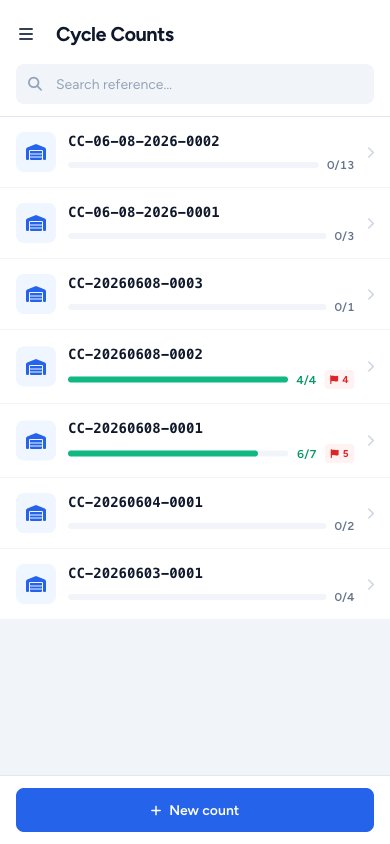
The PDA index ditches the desktop's wide table and gives every count its own full-width row instead:
- A scope icon on the left (location vs product) tells you what kind of count it is at a glance
- The reference number and assignee read horizontally on one line
- A blue progress bar with
done / totalsits below - A red flag chip appears the moment any variance is recorded, so you can spot problem counts without opening them
Search is a sticky bar at the top — type a partial reference number and the list filters instantly. A sticky + New Count button lives at the bottom of the viewport so it's always in the thumb zone.
The Count Screen — Scan, Count, Move On
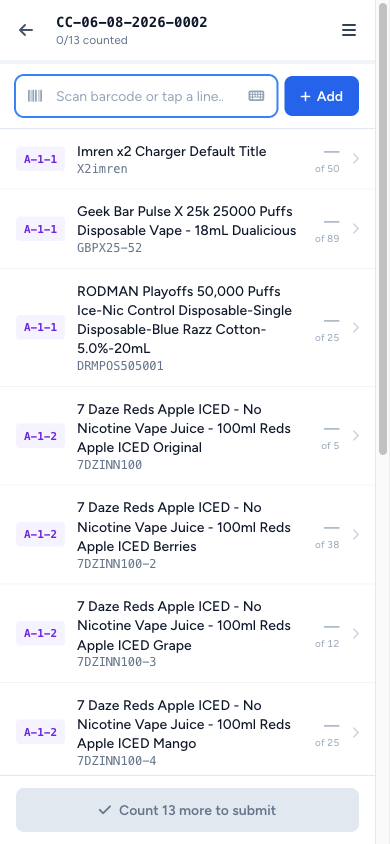
The actual count flow is the headline. The screen is built around three thumb-zone bands:
- Sticky progress header at the top — current location chip + counts done so far
- Scan input that the hardware scanner can drop barcodes into without the soft keyboard ever popping up
- Item list beneath, full-width edge-to-edge rows
Tap any item to enter a count and a numeric keypad slides up from the bottom, big enough to thumb-type without misses. Hit Enter and it commits, advances the row, and dismisses — you're already ready to scan the next item.
Scan Input That Doesn't Fight the Scanner
Every scan input on the PDA pages now uses the same pattern that's been driving us crazy to get right:
- Hardware scanners send keystrokes straight to the focused input, soft keyboard stays closed
- A small keyboard icon next to the input flips into typing mode when you need to type a SKU by hand
- A clear button sits outside the input so you can reset without selecting all + delete
- The field re-focuses on its own after every scan, so you never have to tap back into it
Scan Any Barcode and It Just Works
Product lookup got smarter at the same time. Whether you scan a single-unit UPC, a case UPC, the case SKU, a 5-pack UPC, or any pack-bundle UPC, the system resolves to the underlying product. No more "barcode not recognised" because you scanned the carton instead of the unit.
Create Screen — Pick Locations or Pick Products
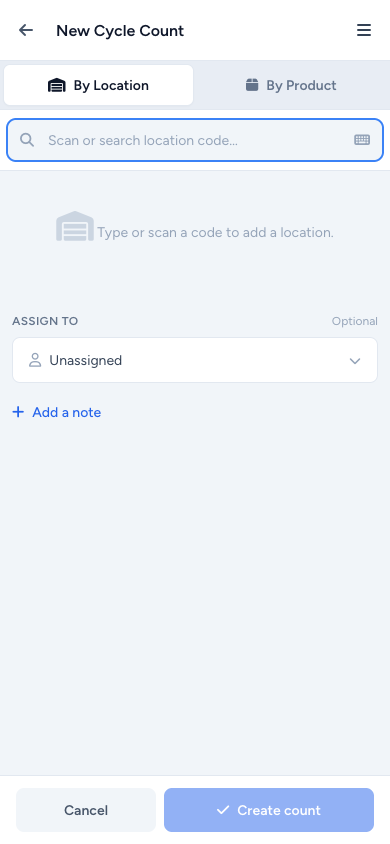
Starting a new count is now a one-screen flow with a segmented toggle at the top:
- By Location — search bins by code; selected bins gather as chips you can review and remove
- By Product — scan or search products; same chip review pattern
Notes and Assignee tuck into a bottom sheet so the main scrolling area stays focused on what's being counted. The submit button stays sticky at the bottom and tells you the count totals up front.
Picker Pages Got the New Paint Too
Since the design system is now shared, the existing Picker screens — pick and cancel picking — got repainted in the same light blue / violet palette. Cards go edge-to-edge for full-width tap targets, the PKD TOT label that nobody read is gone, and the cancel-picking input picks up the same inputmode=none + keyboard toggle + auto-focus pattern.
A Note on the New Reference Number Format
New cycle counts now use CC-MM-DD-YYYY-XXXX. Existing counts keep their old reference numbers — nothing migrates retroactively.