This release makes it easier to keep picking moving when something goes wrong. Pickers get a single Report Issue button for problems at the pick face, managers get a full report showing why picks fail, and large picks no longer have to be scanned one unit at a time.
Report Issue from the Pick Screen
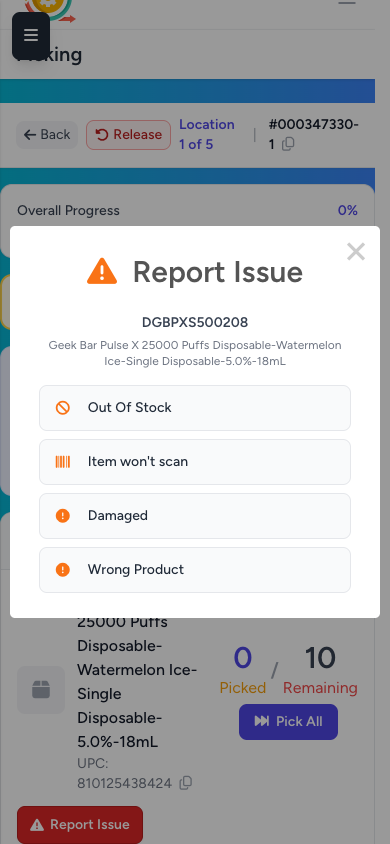
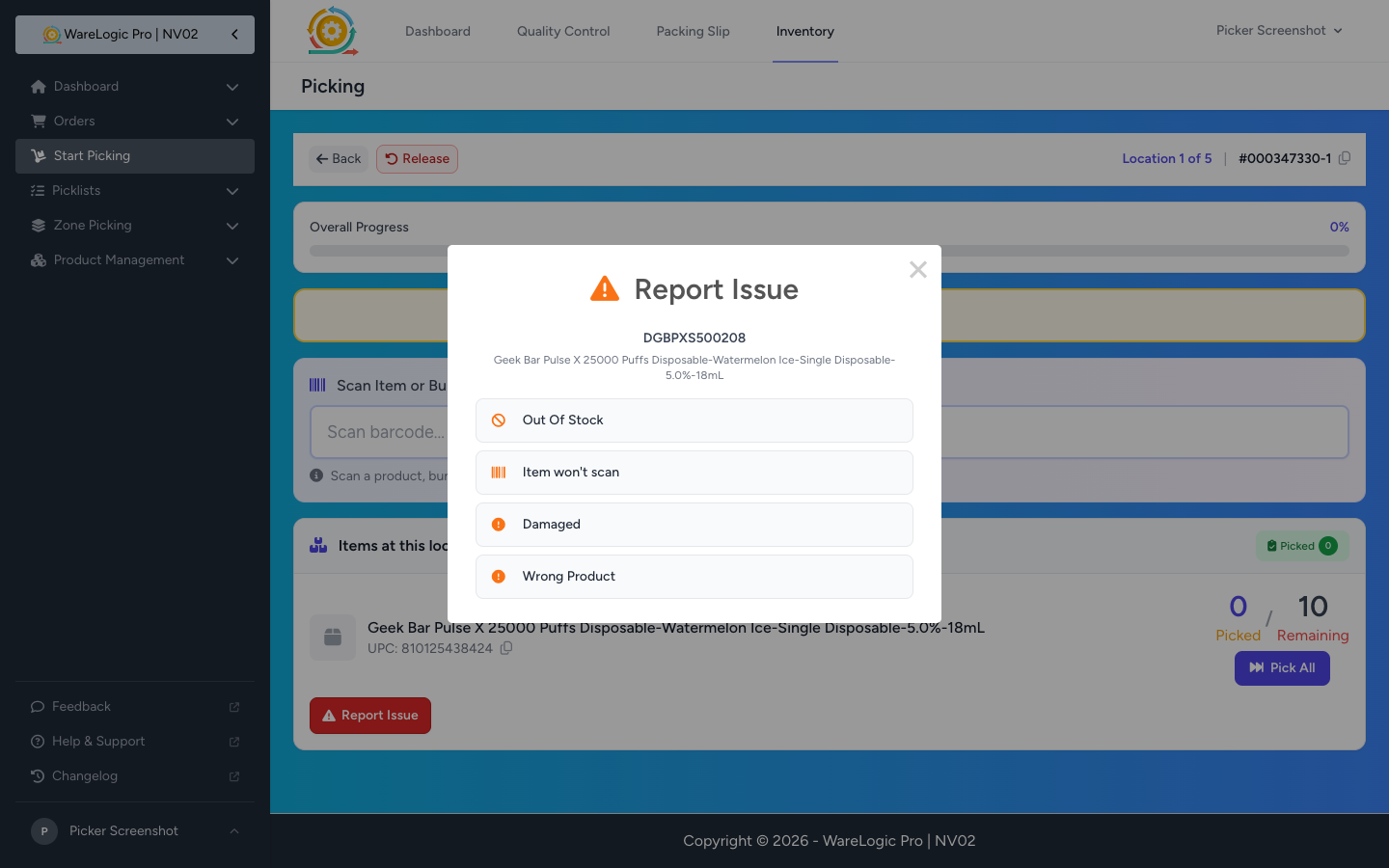
- A single Report Issue button replaces the old No Scan and Out-of-Stock buttons — easy to spot in red next to each item
- Tap it to choose a reason: Out Of Stock, Item won't scan, plus any custom reasons your team has set up
- Each reason takes the right action automatically so you're never stuck:
- Item won't scan — enter the quantity and the pick is recorded without scanning
- Out Of Stock — only zeros the bin in front of you (no more warehouse-wide stock resets) and short-picks the item
- Custom reasons — add optional notes, then short-picks so you're not blocked
- Available on every item, including scan-free ones, so problems always have a path to be reported
Pick Exceptions Report
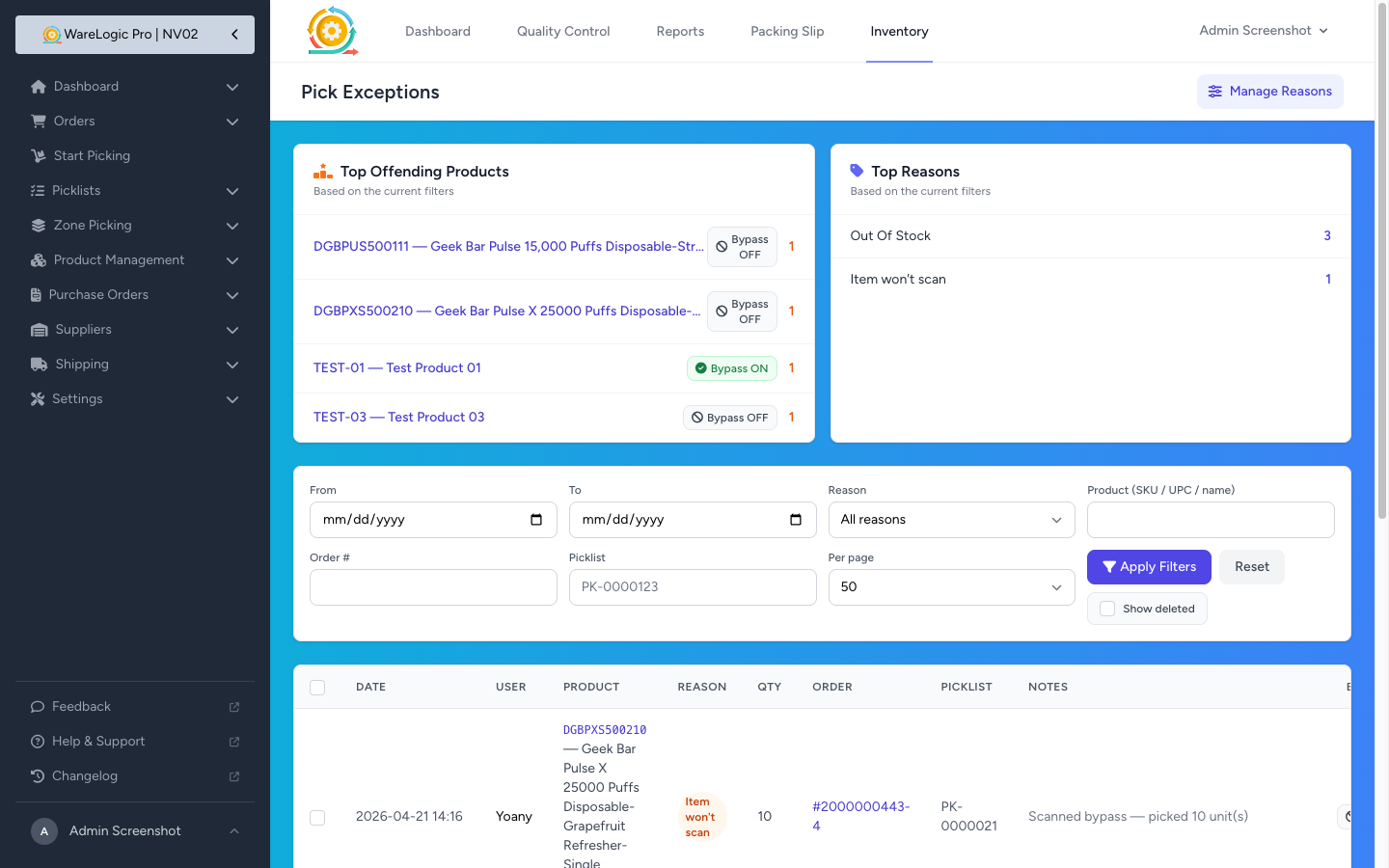
- New Pick Exceptions report shows every issue pickers flag, with filters for date range, reason, product, picker, order, and picklist
- Top Offending Products and Top Reasons cards at the top of the page give you at-a-glance signal on where problems cluster
- Inline Bypass Scan toggle on each row lets you flag a product that keeps failing to scan — one click, no trip to the product page
- Choose how many rows to show per page (25 / 50 / 100 / 200) with a "Showing X to Y of N" summary beside the page links
- The Pick Exceptions link appears in the sidebar for Admins and Managers by default
Bulk Actions on the Report
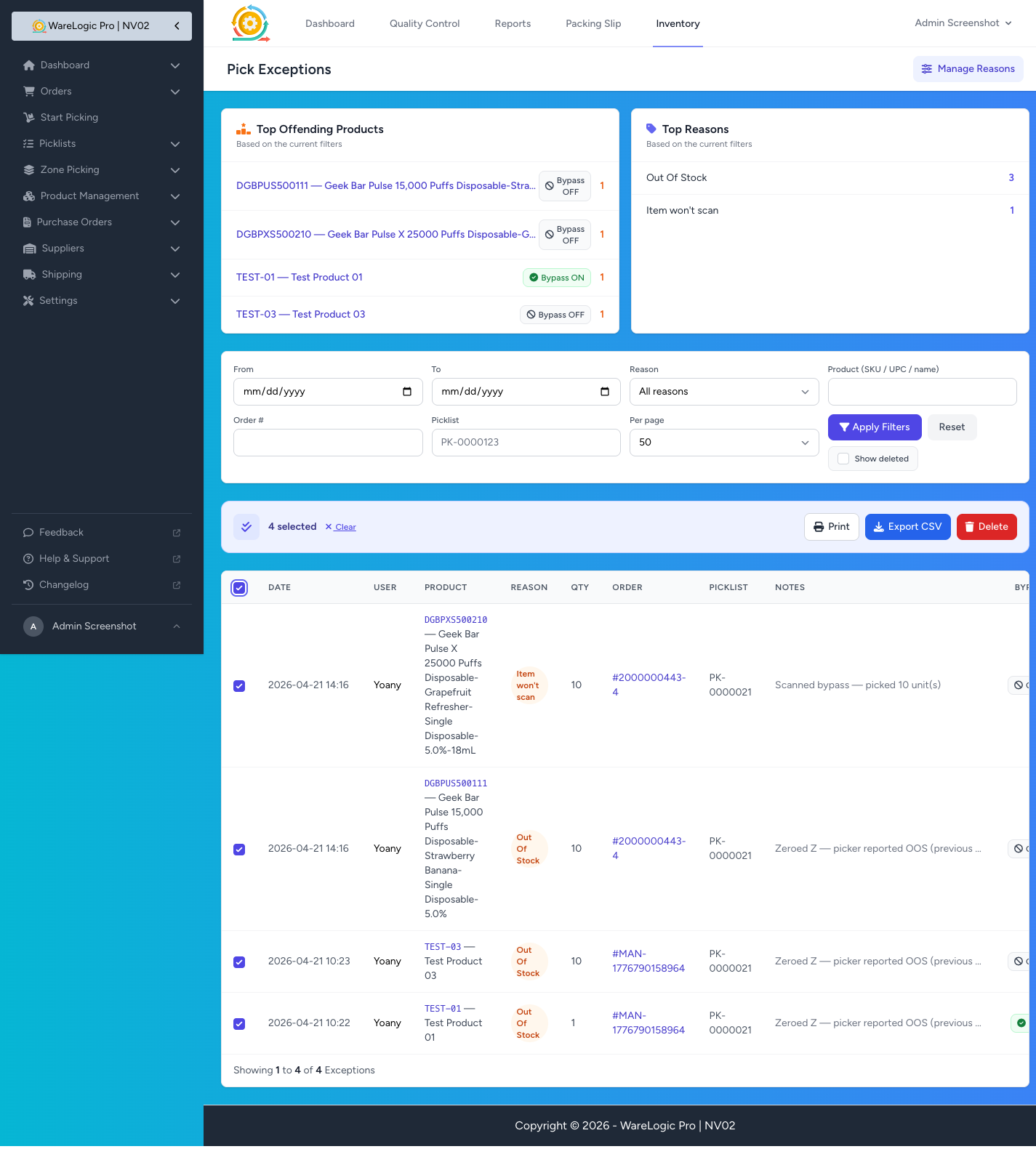
- Select rows with checkboxes, or use the select-all banner to pick every row that matches your filters — not just the ones on the current page
- Print opens your browser's print dialog on a landscape-ready page — no extra tab, no download first
- Export CSV downloads the date, picker, product, UPC, reason, quantity, order, picklist, and notes for the rows you selected
- Delete (Admins only) removes rows with a confirmation prompt — the action is tracked so you can see who cleaned up
- Admins get a Show deleted toggle to bring deleted rows back into view with a red Deleted badge
Customizable Reason Codes
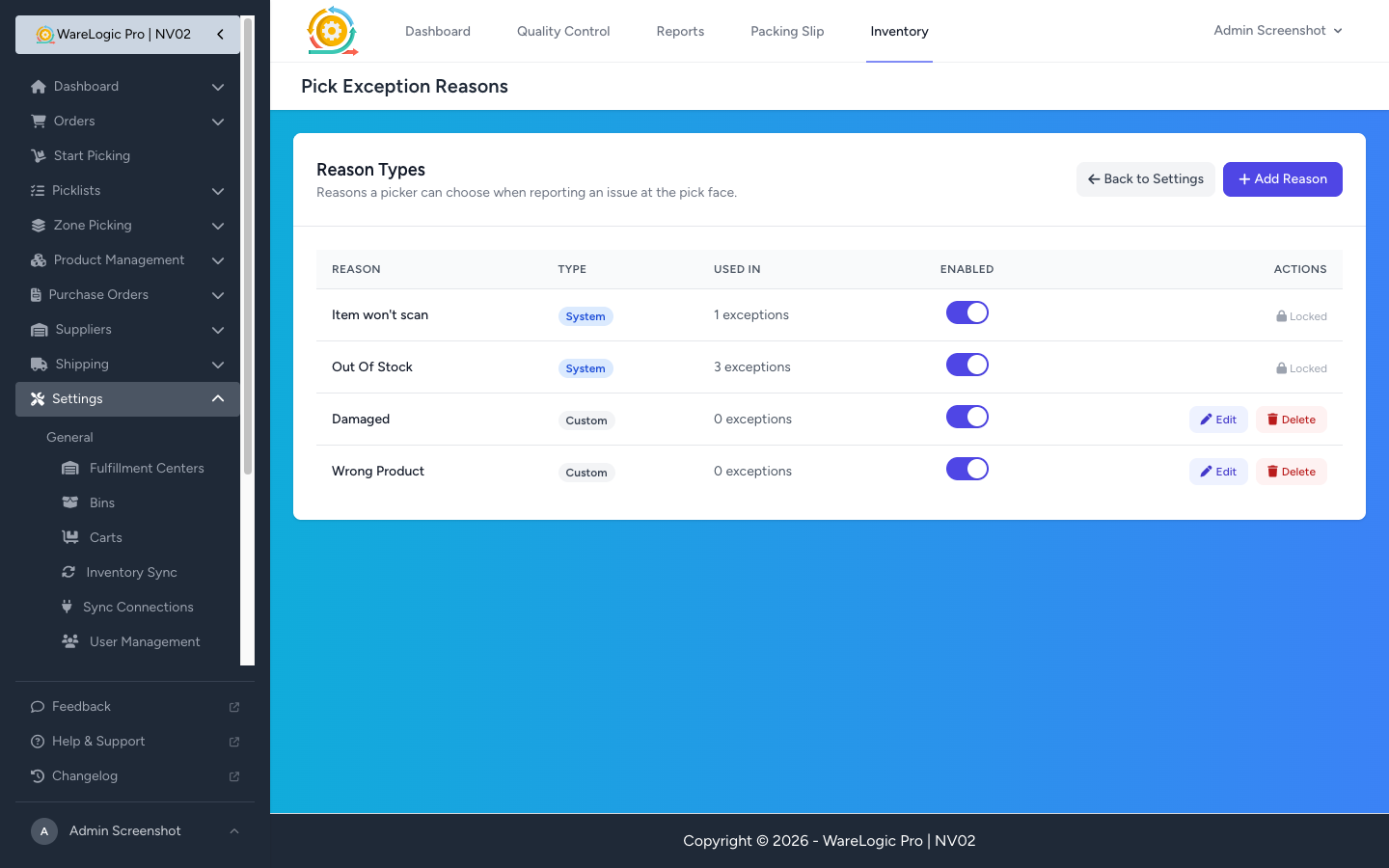
- A new Pick Exception Reasons area in settings lets Admins add, rename, or remove reason codes — changes appear in the pickers' Report Issue popup right away
- Built-in reasons (Item won't scan, Out Of Stock) are protected from renaming or deletion and show a Locked badge so no one can accidentally break core flows
- Reasons that are currently in use can't be deleted — you'll see a clear message if you try
- Ships with starter custom reasons (Damaged, Wrong Product) you can keep or replace
Scan-Free Pick for Problem Products
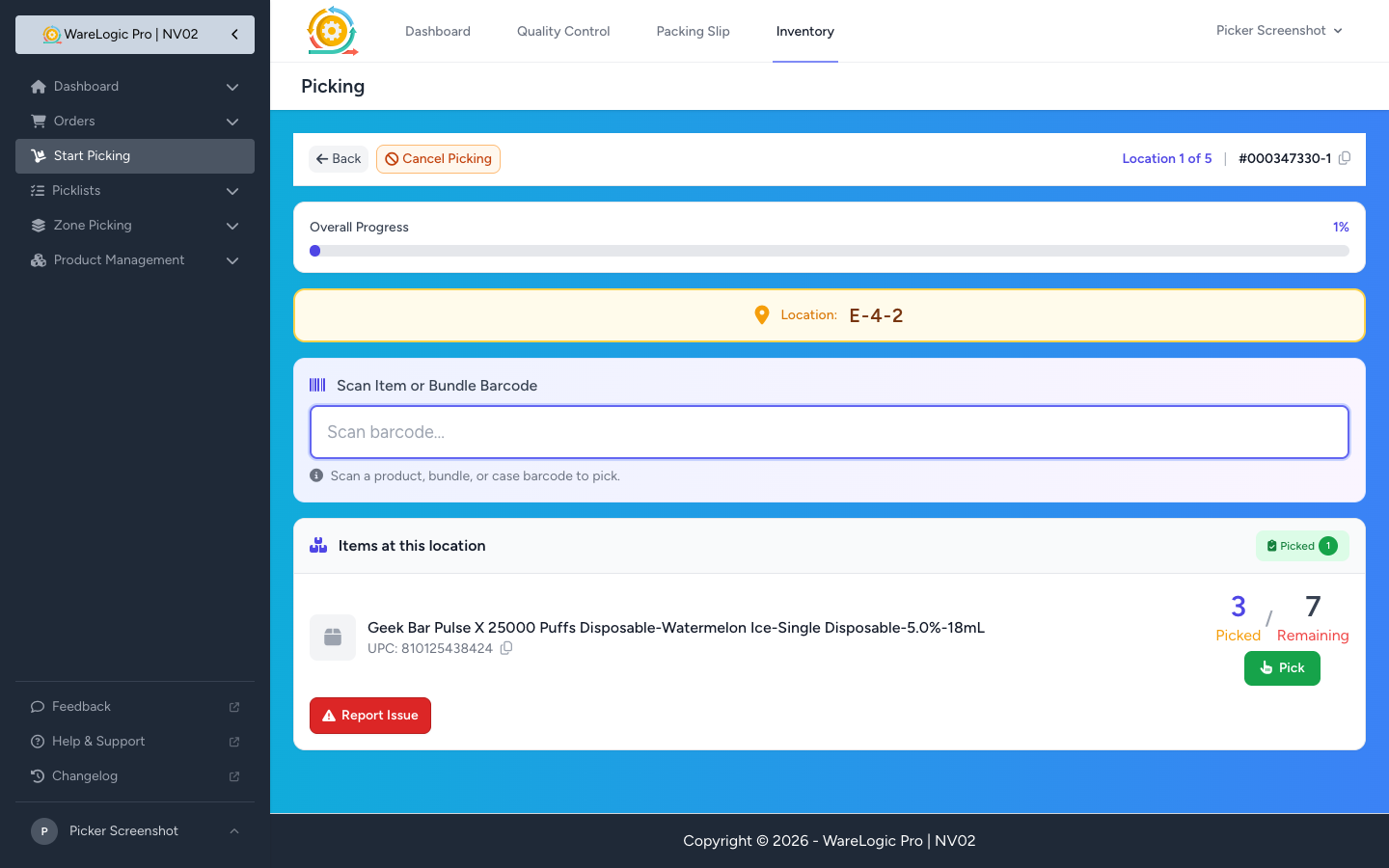
- Products with unreadable or damaged barcodes can be marked to skip scanning — editable from the product edit page or straight from the exceptions report
- When enabled, the pick screen shows a green Pick button — one tap records the pick (or one quantity entry for large picks), no scan needed
- Scan-free picks are pre-authorized, so they don't clutter the exceptions report
Faster Scanning for Large Picks
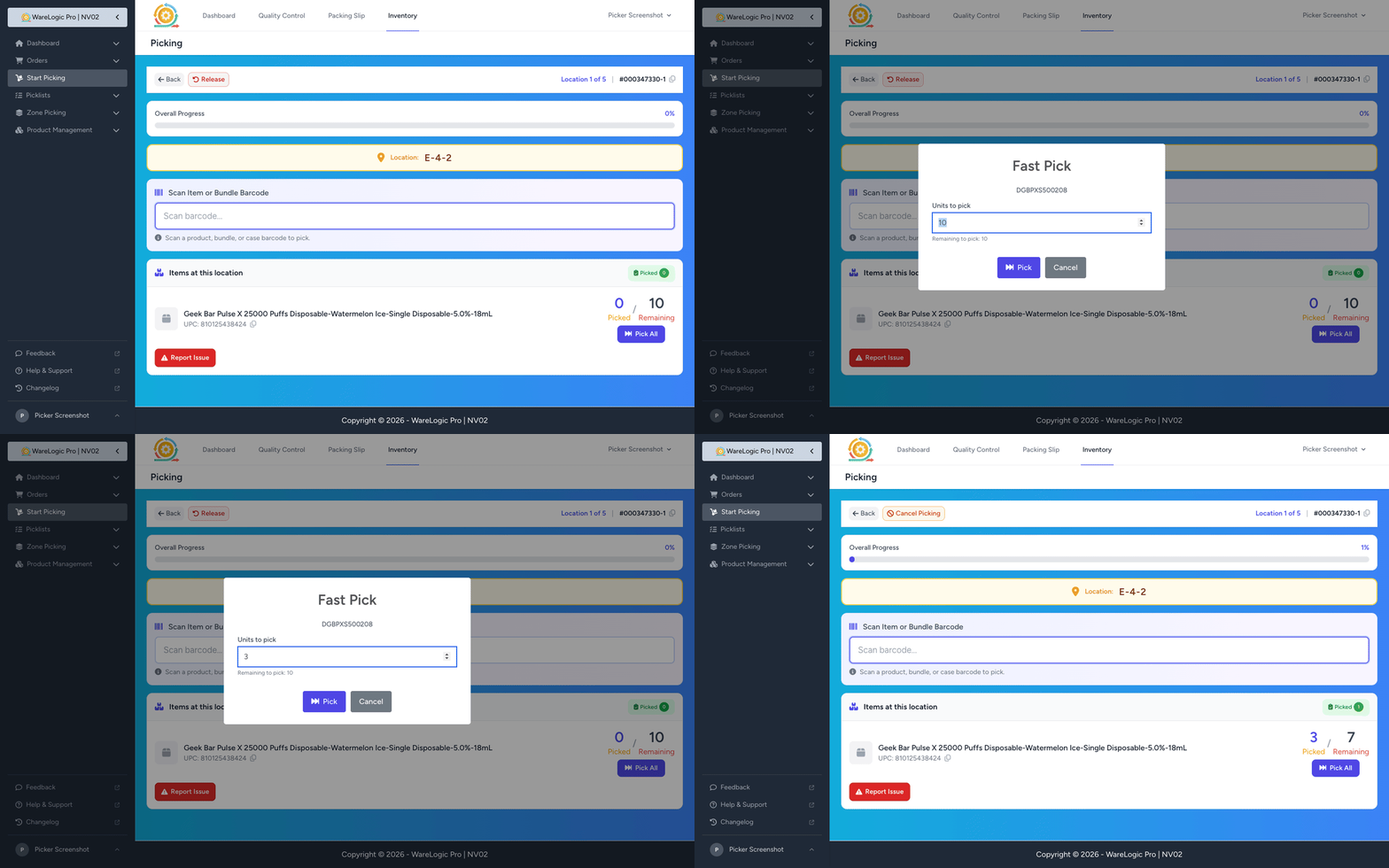
- Scanning a product when you still have a lot left to pick now opens a Fast Pick popup instead of counting one unit per scan
- The quantity is pre-filled at what's remaining and the input is focused — press Enter to pick everything, or type a smaller number first
- Small picks keep working one-scan-at-a-time, so nothing changes when you're grabbing a unit or two
- Bundle and case scans work the same as before
New Picking Settings
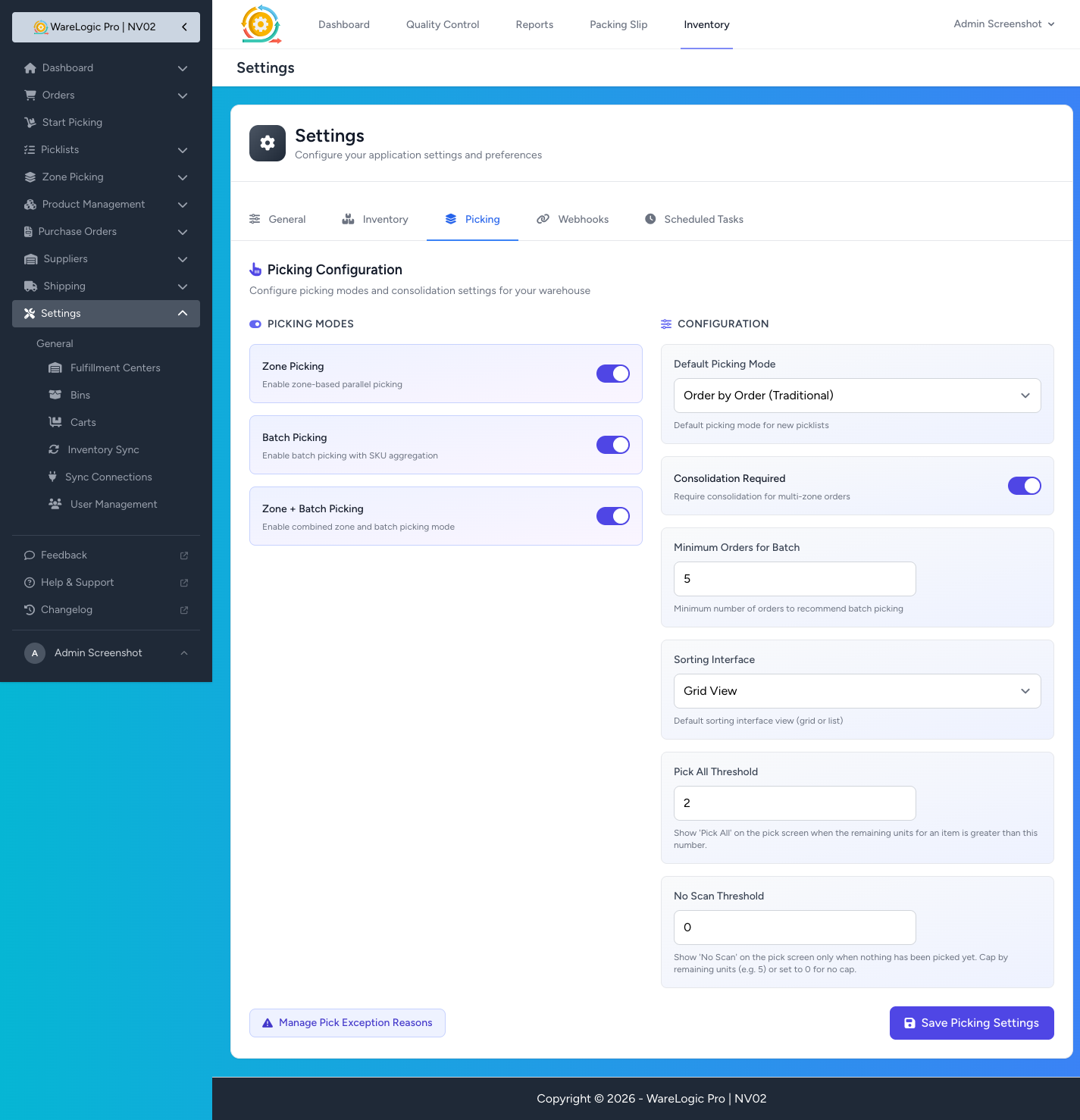
- New Pick All Threshold in the Picking settings tab — controls when the Pick All button appears and when a scan should open the Fast Pick popup
- New No Scan Threshold — caps how large a pick can be before the "Item won't scan" reason is hidden, to discourage skipping scans on bulk picks. Set to 0 to remove the cap.
Permissions
- View pick exceptions — see the Pick Exceptions report. Default: Admin and Manager.
- Manage pick exception reasons — add, rename, or remove reason codes in settings. Default: Admin and Manager.
- Delete pick exceptions — bulk-delete rows from the report. Default: Admin only.