Connecting an AI assistant to the WMS used to mean creating an AI agent and pasting its token into the app. Apps like ChatGPT, Codex and Claude can now connect the way you connect them to any other service: you sign in, choose what to share, and approve. You stay in control of what each app can see, and admins can cut any connection at any time.
Connect AI Apps by Signing In
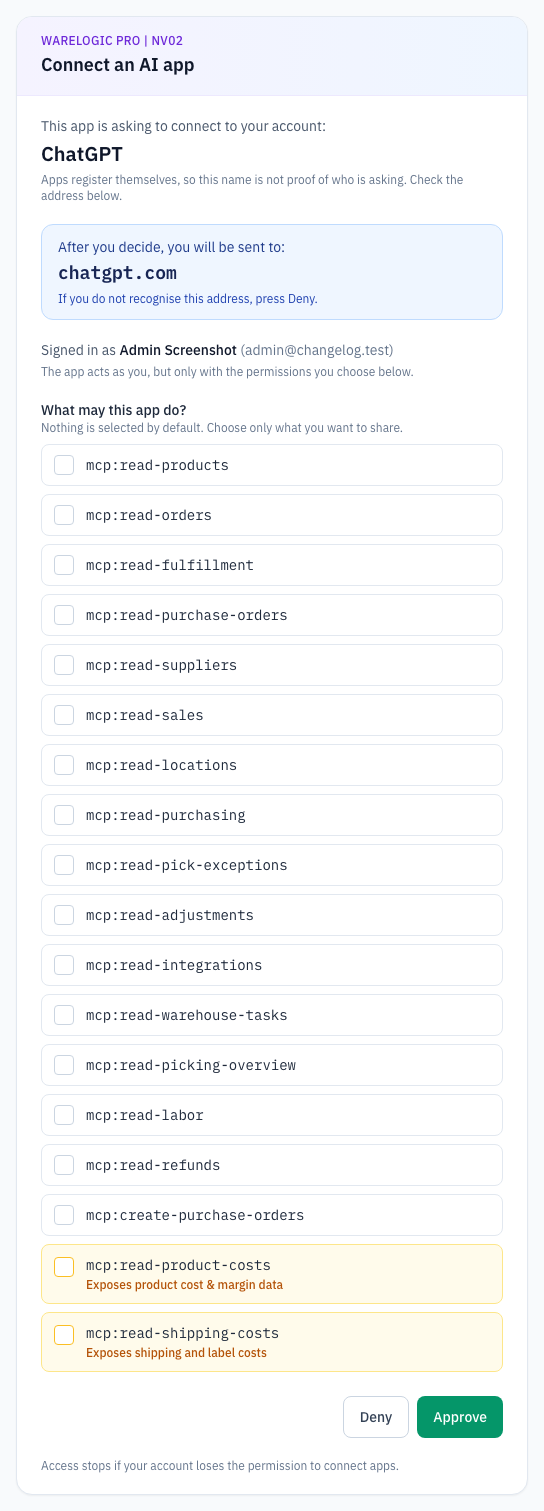
- In ChatGPT, Codex or Claude, add the WMS as a connector using its address. The app sends you to the WMS to sign in.
- A permission screen shows which app is asking and where you'll be sent after approving. Apps name themselves, so if you don't recognise the destination, press Deny.
- Tick exactly what the app may see, such as products, orders, purchase orders or costs. Nothing is selected until you choose it, and you can only share what your own account can already see.
- The app keeps working without asking you again, and it can only ever use what you approved.
- Connecting an AI app requires the Connect AI apps permission, which only admins have for now.
See and Disconnect Connected AI Apps
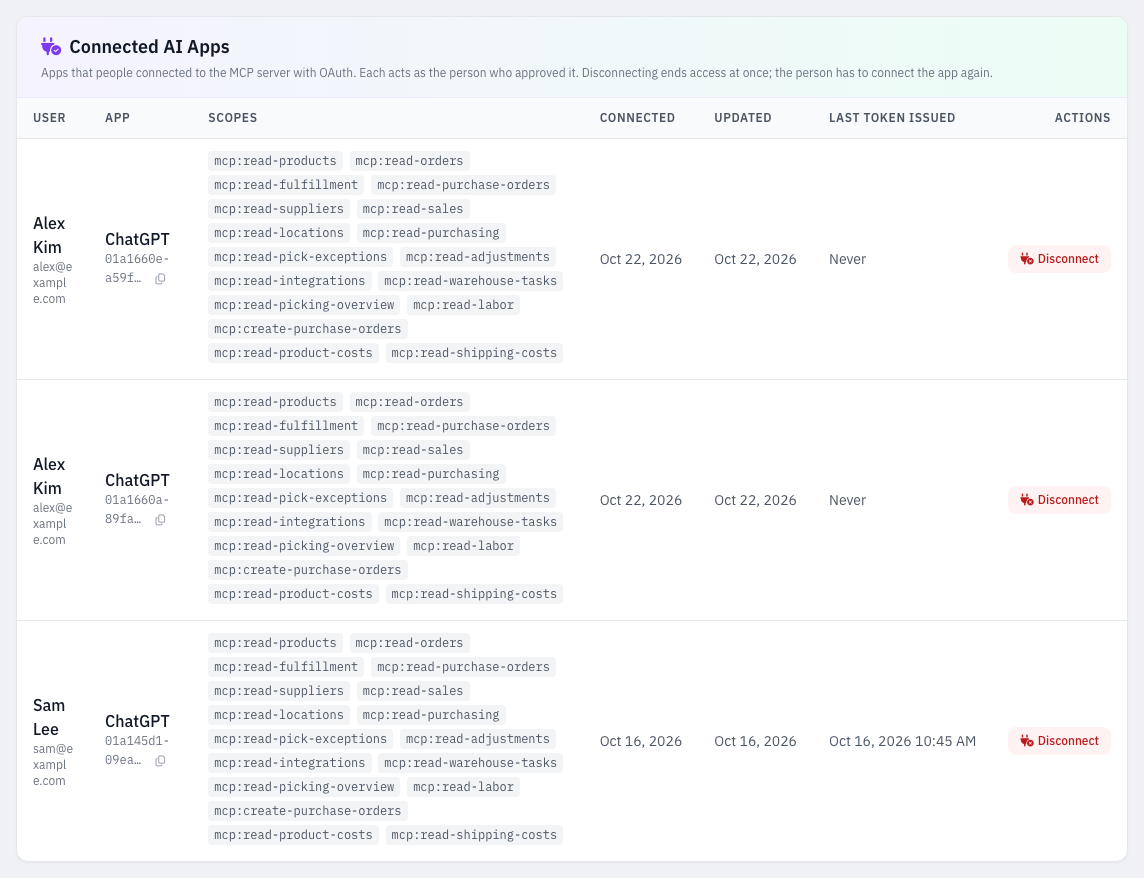
- Settings → AI Agents now has a Connected AI Apps section listing every connected app: who connected it, what it can see, when it was connected, and when it last renewed its sign-in.
- Disconnect stops an app immediately. To use it again, the person has to connect it again.
- Connecting and disconnecting an app both show up in the activity log, and each AI app action names the app that made it.
Safer Offboarding
- Suspending or deleting a user disconnects all of their AI apps on the spot.
- Unsuspending a user doesn't bring the connections back; they have to connect again.
Existing AI Agents Keep Working
- AI agents created on Settings → AI Agents and their tokens work exactly as before. Signing in is a second way to connect, not a replacement.