This release puts a map of the route in every picker's hands, brings all of your integrations together on one page, and lets connected AI apps answer questions about much more of the warehouse. It also makes sure address changes made in your stores reach the order, and gives admins more control over AI access and activity history.
A Map of Your Picking Route
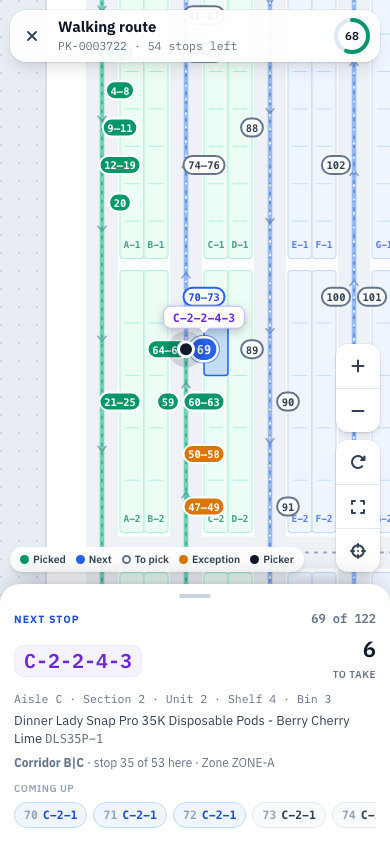
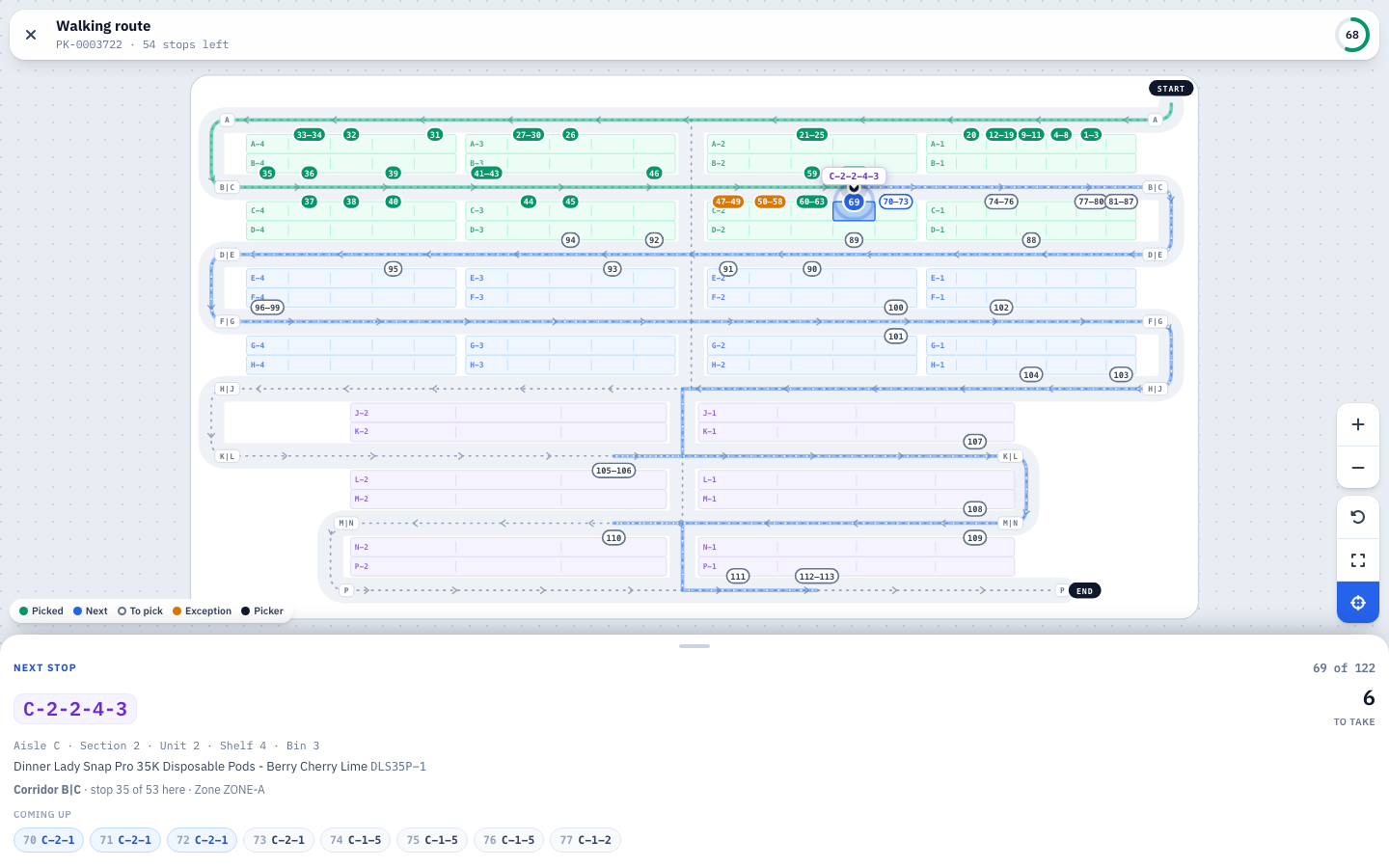
- While picking, a new route button on the stop screen opens a full-screen map of the floor. It shows where you are, your next stop, the route ahead and the stops you've already done.
- Pinch to zoom, rotate the map, and tap a pin to see which product and shelf it is.
- On the zone-picking Preview, View route opens the same map, with stops that have a reported problem shown in amber.
- Zone picking routes now pass through each shared aisle once instead of twice. This applies to picklists created from now on.
Where Products Live, and Where They Were
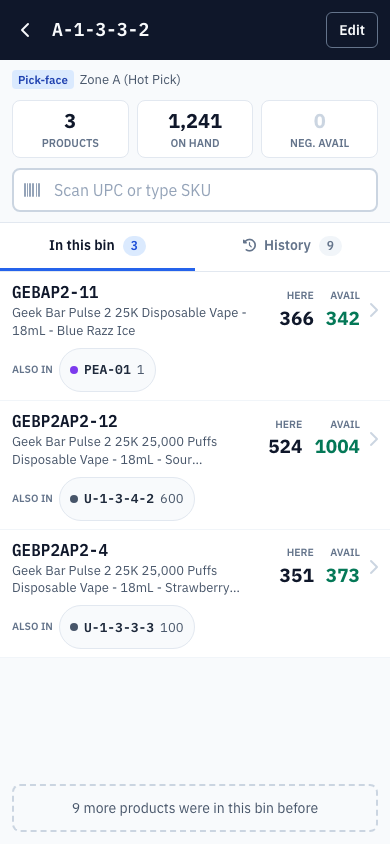
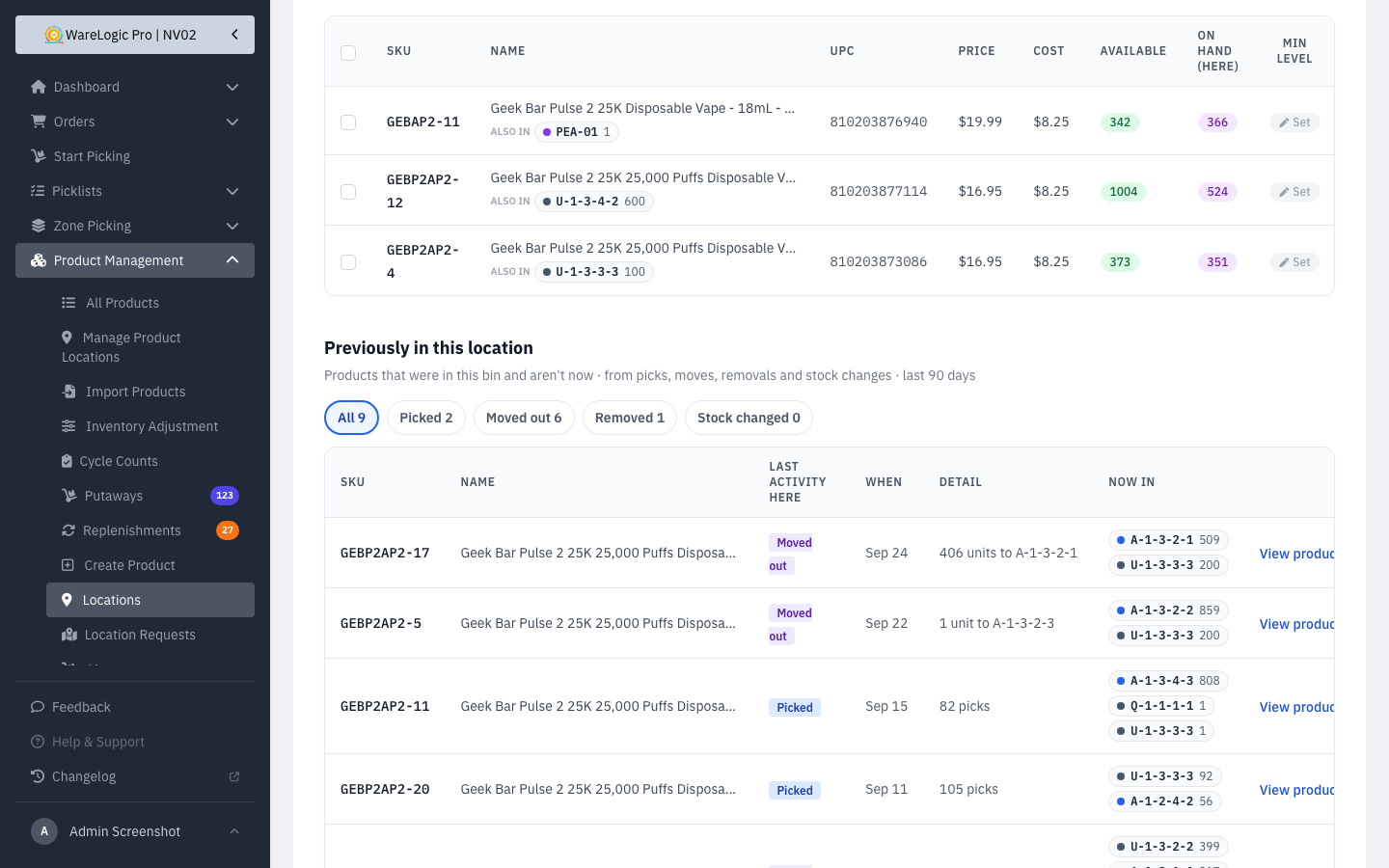
- Open a bin, by scanning it on the handheld or opening it on desktop, and each product now shows Also in chips listing its other bins and how many are in each.
- A new History tab lists the products that were in the bin recently but aren't anymore: what last happened (picked, moved out, removed or a stock change), when it happened, and where the product is now.
- The history loads after the rest of the page, so scanning a bin is no slower.
Every Integration on One Page
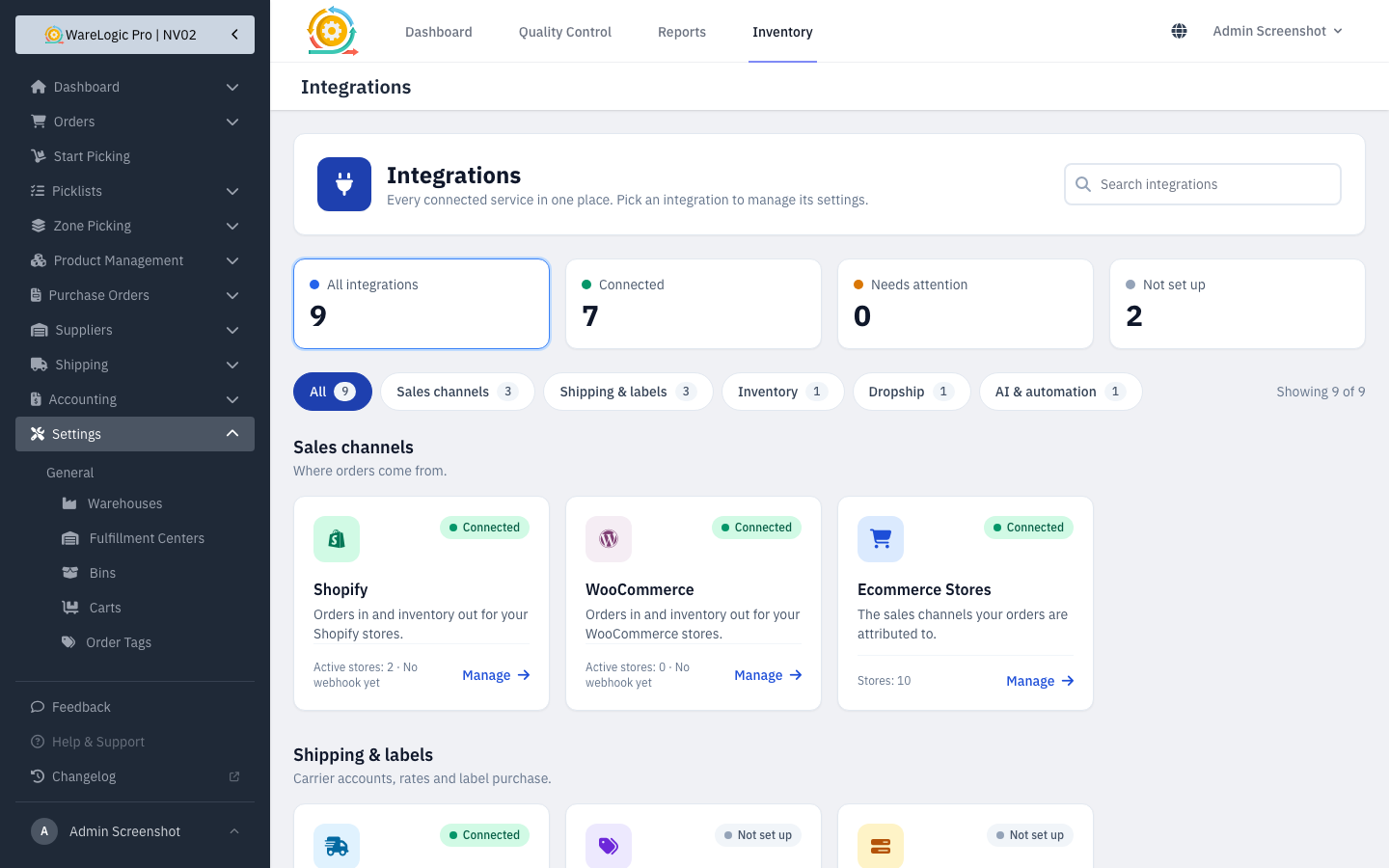
- The new Settings → Integrations page shows a card for each integration, such as Shopify, WooCommerce, ShipStation and Duoplane.
- Each card tells you at a glance whether it's Connected, Needs attention (its last sync or stock update failed) or Not set up.
- Search and filter the cards. You only see the integrations you're allowed to open.
- This page replaces the separate integration links in the sidebar, and every integration's page has a Back to Integrations link.
Address Changes from Shopify and WooCommerce
- When a shipping address is edited in Shopify or WooCommerce, the change now reaches the order in the WMS, up until the order ships. Each change is recorded in the order's activity.
- Re-import from Shopify also brings in the latest address and tells you when it changed.
- An address you correct in the WMS stays as you left it, unless the address in the store is changed again.
- If the order was already sent to ShipStation, update the address there as well.
Install or Remove Webhooks in Bulk
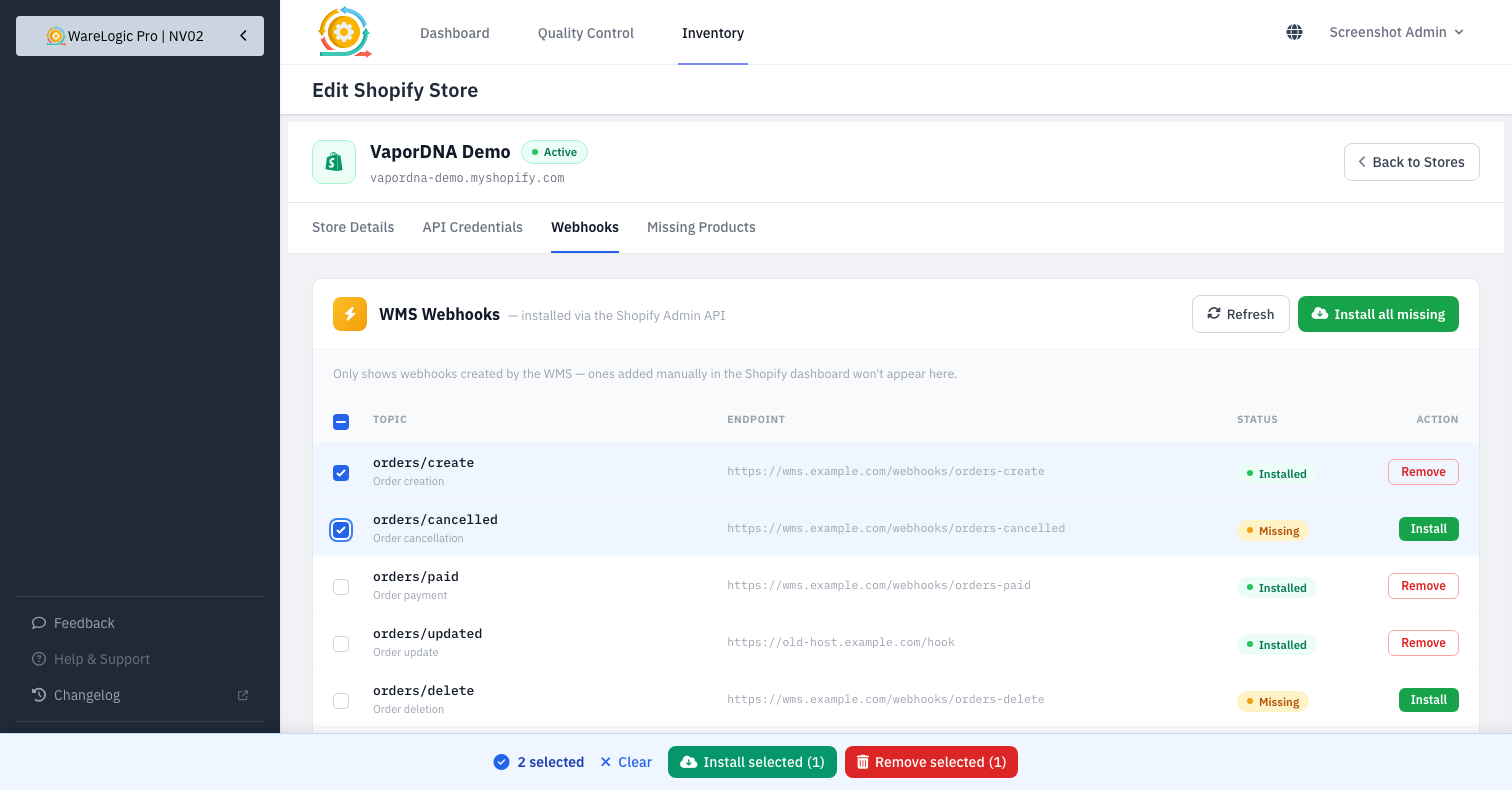
- On a Shopify or WooCommerce store's Webhooks tab, tick the webhooks you want, or all of them at once.
- A toolbar at the bottom of the screen lets you Install selected, Remove selected or Clear the selection. Removing asks you to confirm first.
- You see the progress while it runs and a summary for each webhook at the end.
- When the store refuses a webhook, you now see the store's own reason instead of a generic error.
Ask Your AI Apps About More of the Warehouse
- Connected AI apps and AI agents can now look up:
- Locations: what each bin holds, empty bins, and bins below their minimum or above their maximum.
- Reorder suggestions: what to reorder, how much and from which supplier, updated every hour.
- Pick problems: the products and reasons behind the most problems, orders held for out-of-stock checks, and skip rates by zone, without naming anyone.
- Stock corrections: who corrected what, where, by how much and why.
- Integration health: stock syncs, background tasks, orders stuck waiting for payment, and whether today's Shopify and WooCommerce stock updates ran.
- Warehouse tasks: open cycle counts, putaways and replenishments, with their age and progress.
- Picking overview: orders at each stage, the queue, throughput, speed by picking mode, goals, and open picklists with their age.
- Labor: pickers and packers per day and how much each did. Names are only included when asked for.
- Refunds: Shopify refunds by day, product or store, with the refund rate.
- Orders can now be filtered by store and show why an order is on hold or cancelled. Products show in-stock, low-stock and out-of-stock counts and slow sellers. Fulfillment shows the QC backlog and backorders with how long they've been waiting. Purchase orders can be filtered by status, including drafts created automatically.
- Orders shipped today now matches the Reports page. Before, it could show a lower number.
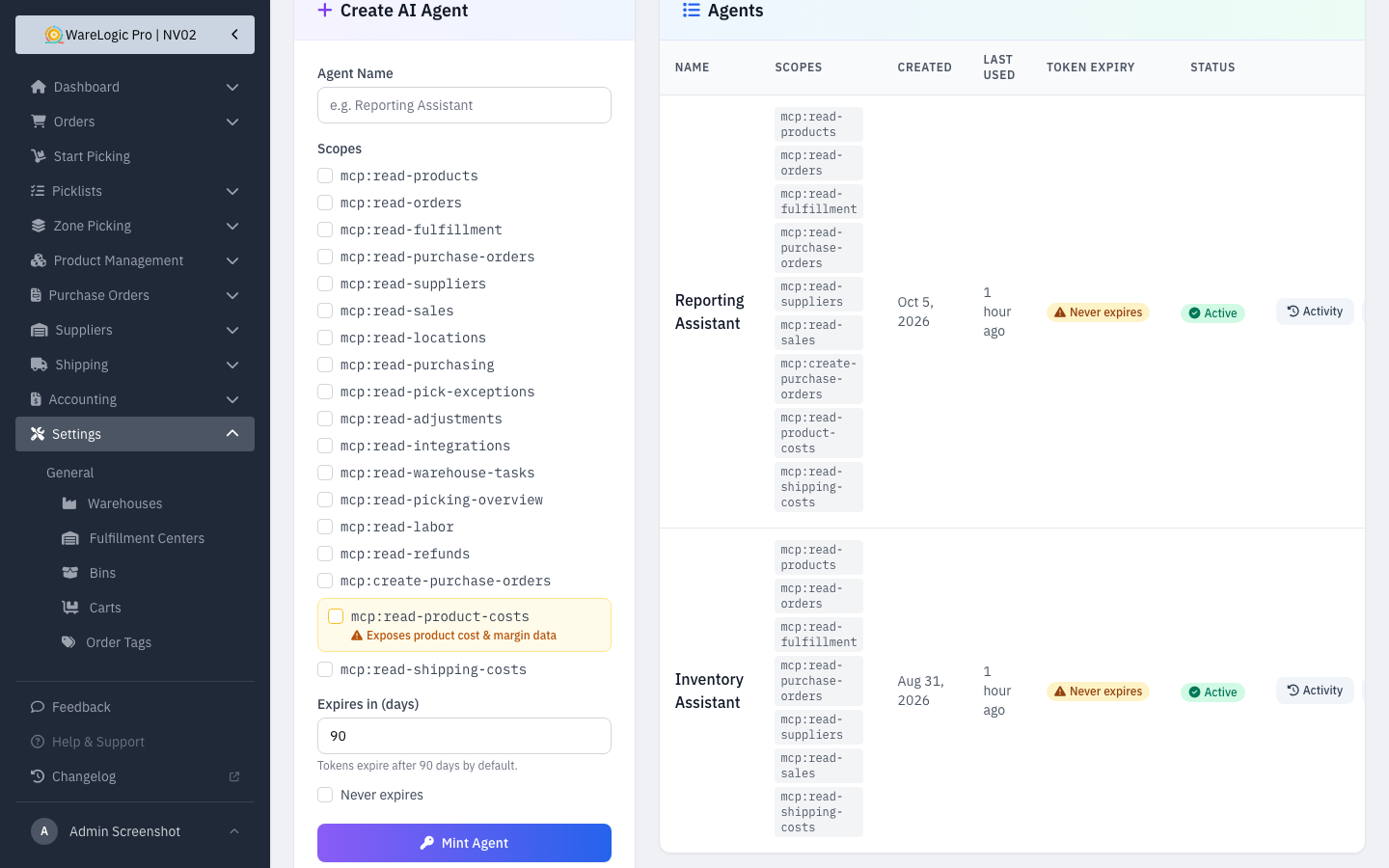
- Nothing new is shared until an admin ticks it. Each kind of data is its own option on Settings → AI Agents and on the app's permission screen, and costs still need their own option.
- In your AI apps, the connection is now called WareLogic Pro MCP Server.
Safer AI Agent Tokens
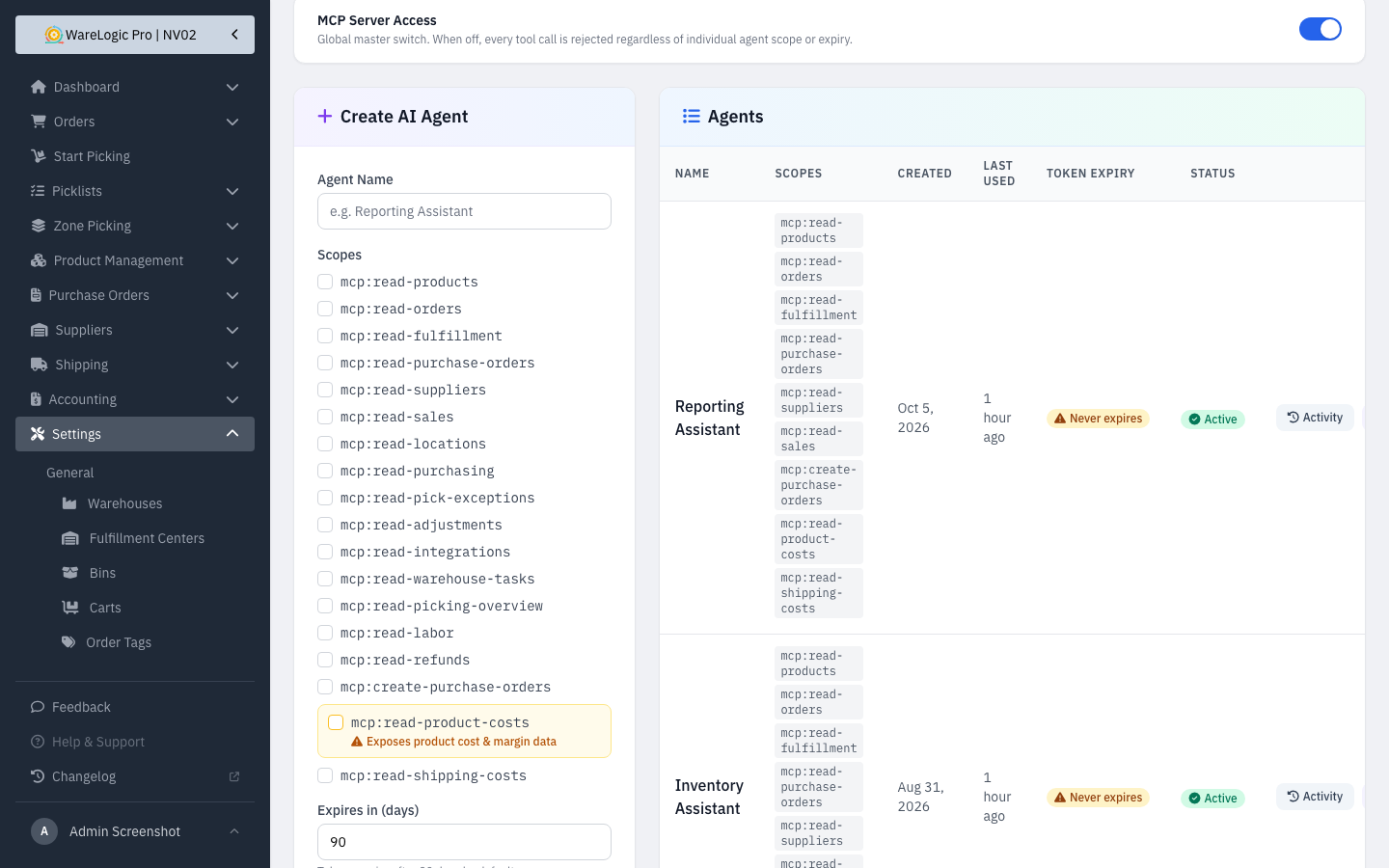
- New AI agent tokens expire after 90 days. A token that never expires has to be chosen on purpose with Never expires, which shows a warning.
- Tokens you already have keep working as before. The new Token Expiry column shows when each one expires, with an amber badge for tokens that never expire and the date in red once a token has expired.
- Creating an agent, changing what it can see, revoking a token and turning AI access on or off are now recorded in the activity log with who did it. AI activity also names the token that was used.
Control Who Sees Activity History
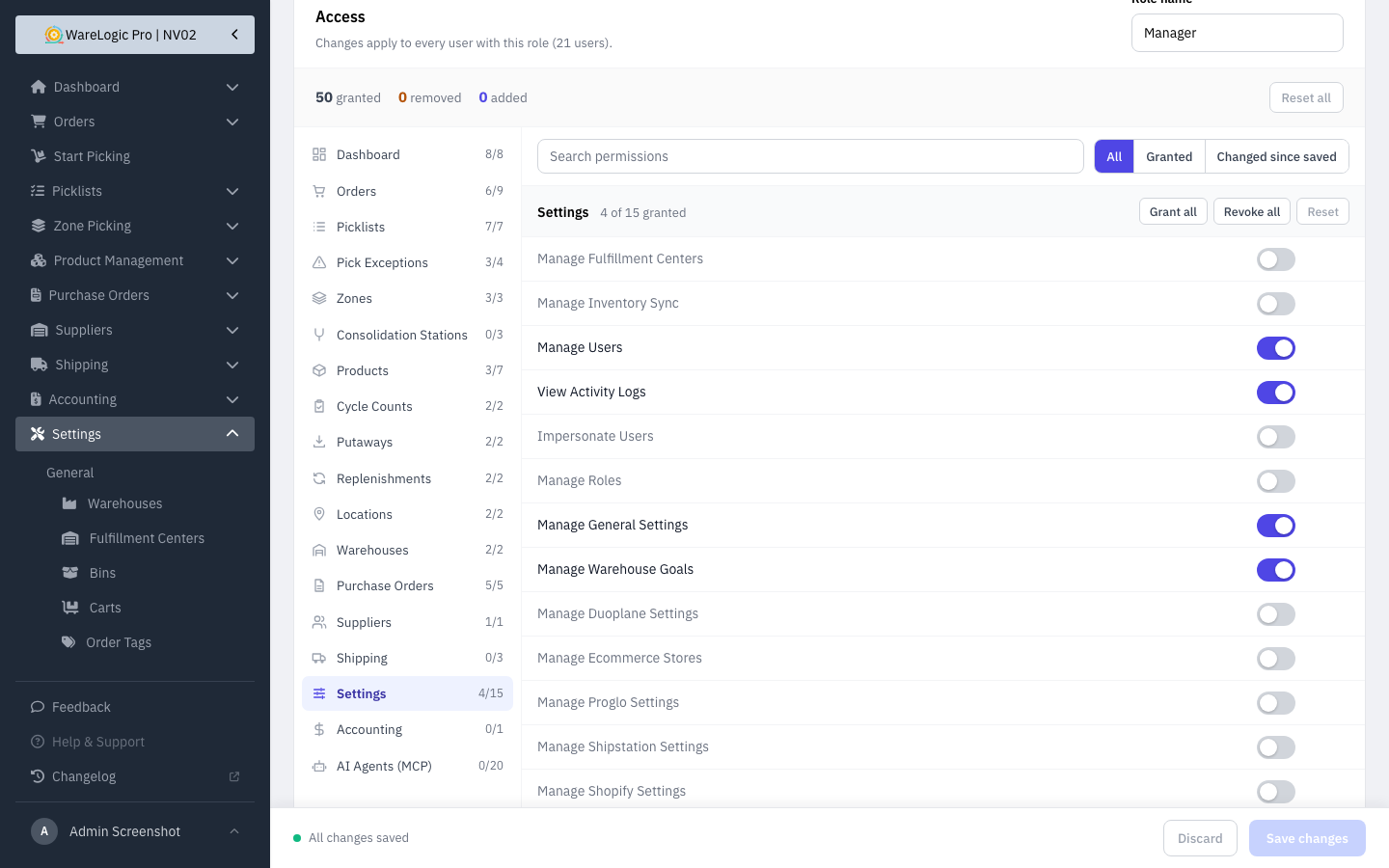
- A new View activity logs permission decides who sees the Activity panels on orders, purchase orders and products. Admins and Managers have it, and an admin can give it to anyone else.
- Without it, the handheld Edit Product screen doesn't show the Activity tab.
QC Improvements
- Changing the Packed quantity now moves the stock as well: raising it takes the extra units off the shelf, and lowering it returns them to a bin. If the product has no location to return them to, the change is refused with a message explaining why.
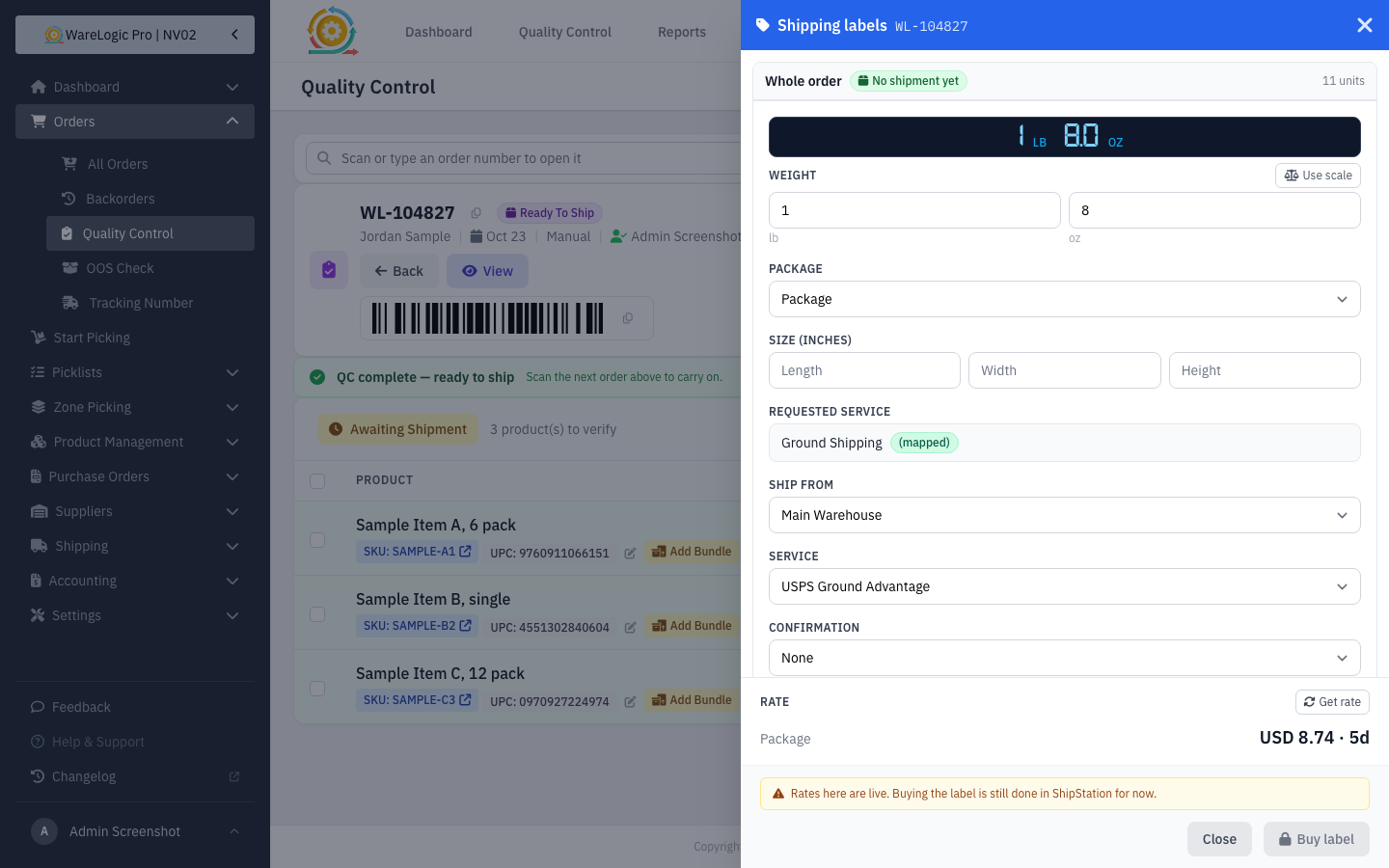
- The shipping panel now shows rates for orders that don't have a shipment yet.
- The shipping panel's header takes up less space.
- Use scale reads the weight from a USB scale in Chrome. You can still type the weight yourself.